Tutorial: how to link location pages to the company page on Facebook?
If you manage a Facebook business page as well as local outlet pages, you can link these accounts to facilitate the management of these pages' information in one place! Find out how below in 7 steps!
In this article
- What is Meta Business Manager?
- What are the conditions for linking the pages of different stores to the company page?
- How to link your sales point pages to your national page? (tutorial in 8 simple steps)
1. Meta Business Manager
Meta Business Manager previously known as Facebook Business Manager, is a free tool that allows you to manage Meta advertising accounts (Facebook, Messenger, Instagram, and the Meta audience network), pages and the people who work on them, in the same place.
Before we begin, let's go over some technical terms specific to Meta Business Manager:
- Main Page: the national page of your company.
- Store page: the “locations” pages of your different stores.
What is the difference between simple pages and a "place" page?
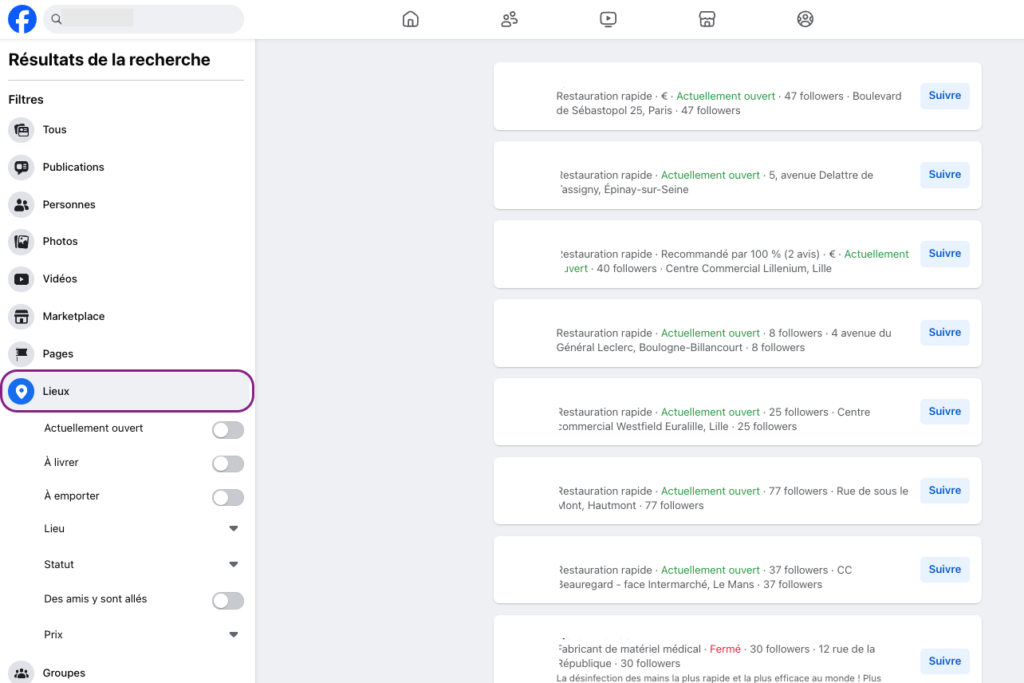
When a page is not yet integrated into a Meta Business Manager, it is a simple page. Once integrated, it becomes a "location" page and is displayed as such during the search:
2. What are the conditions for being able to link the pages of different stores with the company page?
- Have a Business Manager to manage your pages: https://business.facebook.com/
- Having a main page for the already created business: Make sure your business main page is properly configured on Meta. If it hasn't yet been converted into a "location" (local) page, be sure to perform this conversion. Note however that during this conversion, the business page's address will no longer be displayed publicly.
- For the store pages (place pages) :
- Check that they are not attached to groups, otherwise they will not be able to be linked to the main page.
- Make sure you have administrator access to these local pages so you can manage them effectively.
3. How to link store pages to your main (national) page? (Tutorial in 8 simple steps)
- Access Meta Business Manager
- Log in
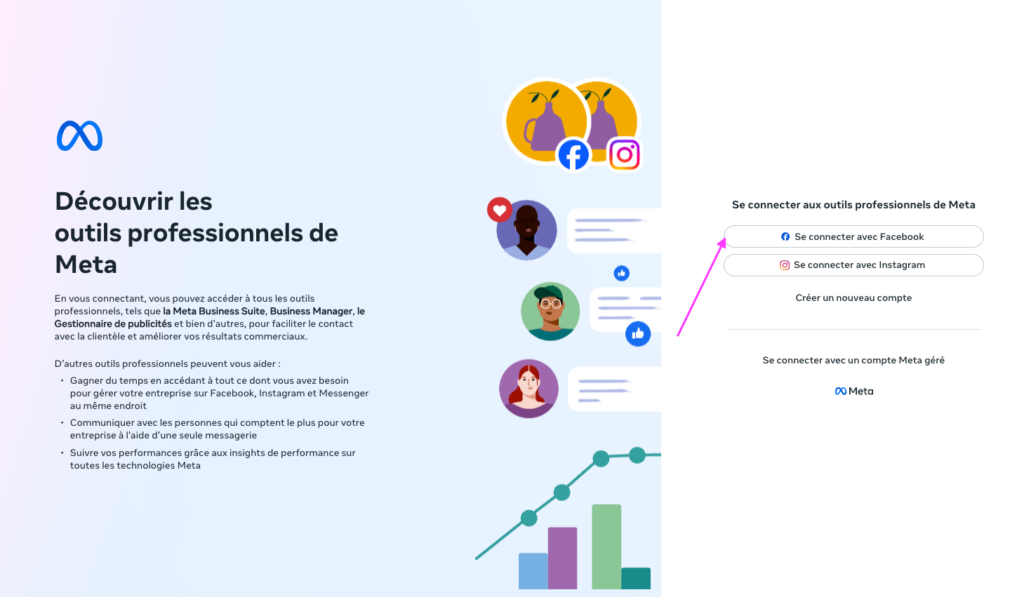
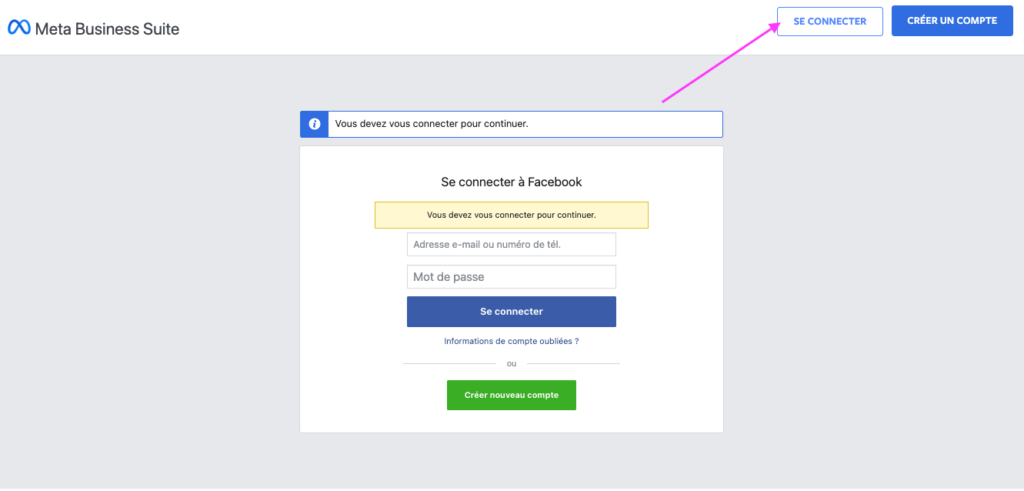
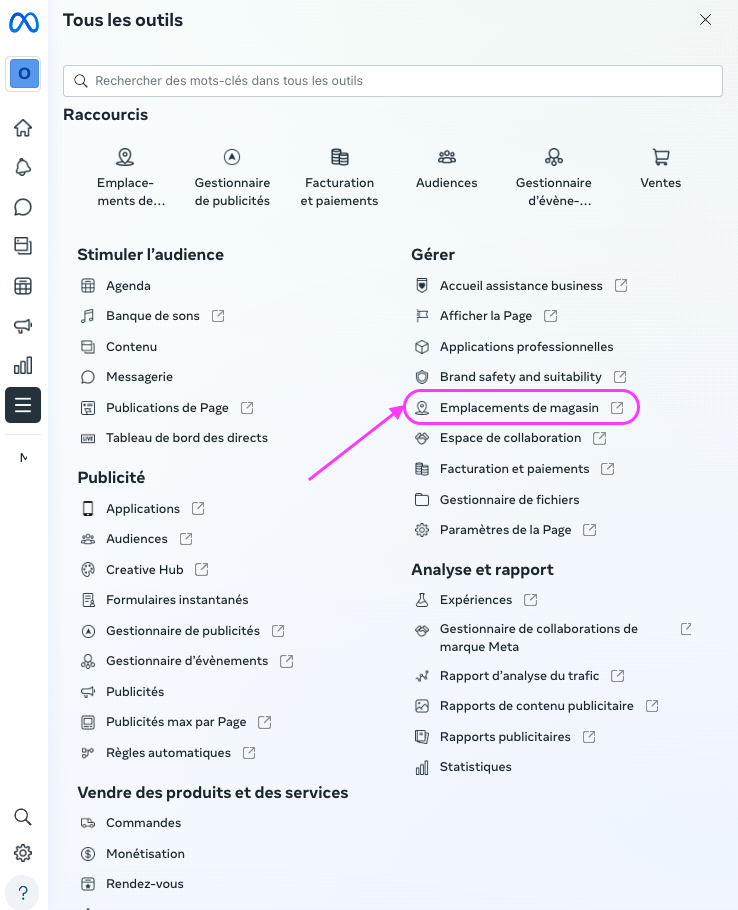
- Go to the “Store locations”

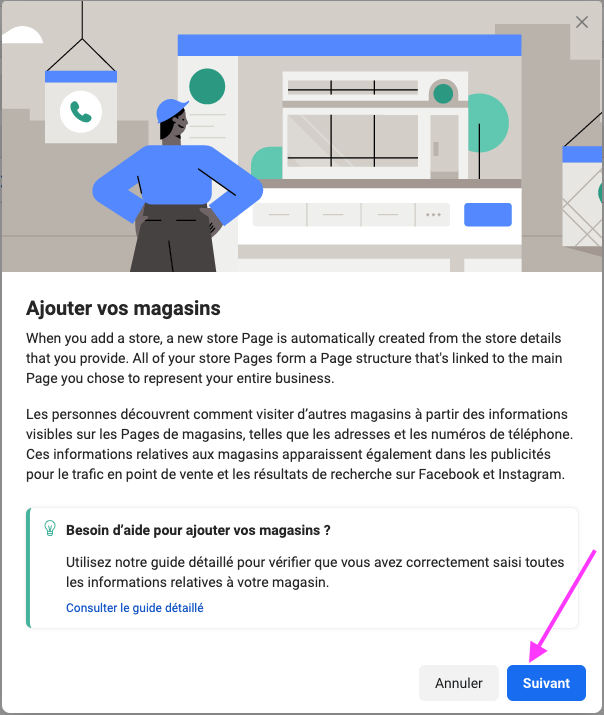
- Click on the “Add Store” button → “Next”
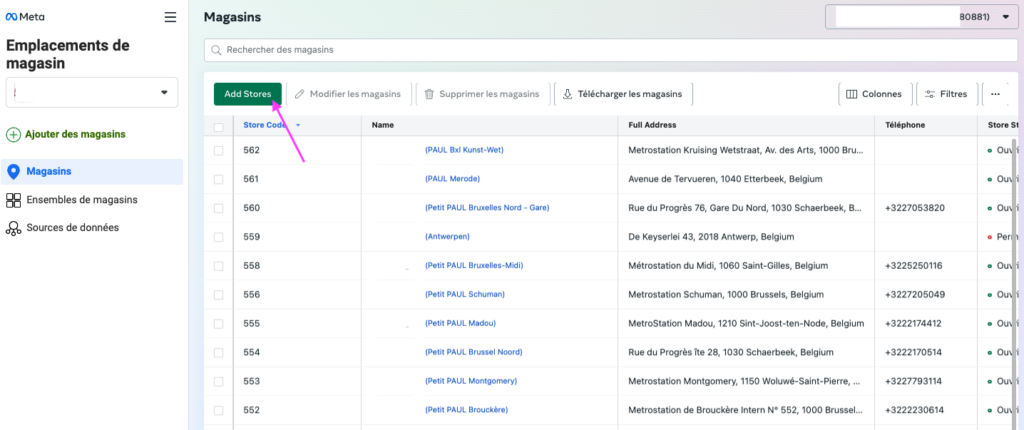
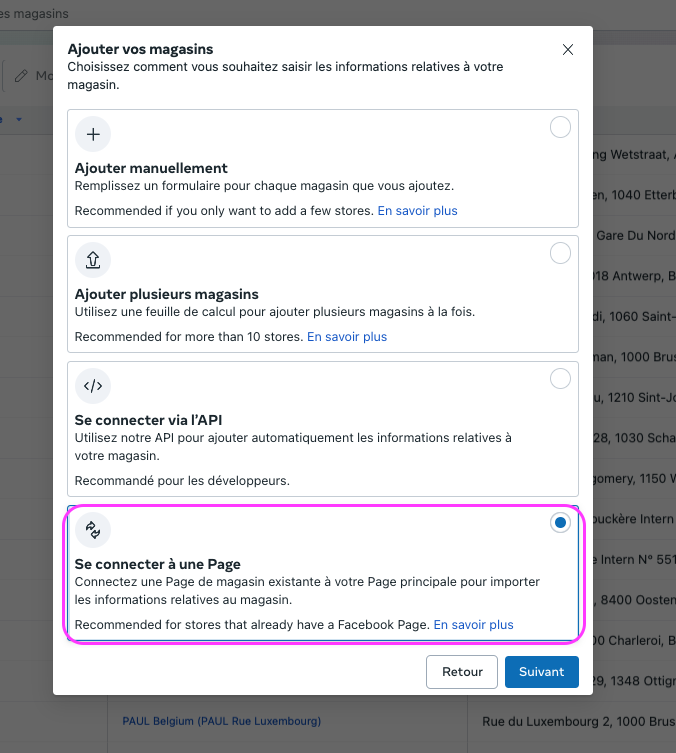
- Click on “Connect to a page” → “Next”
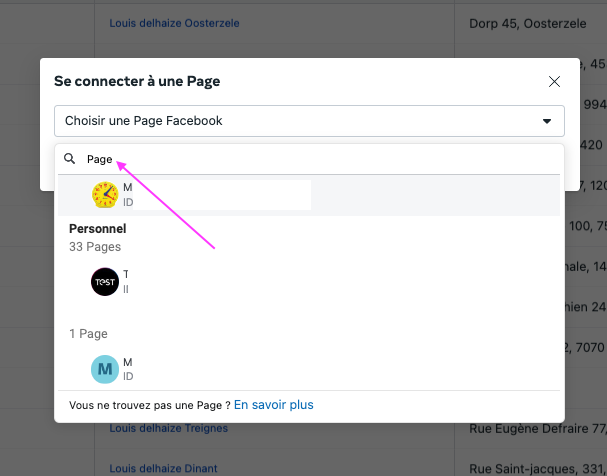
- Search for the page to link with the main page (you may enter the name or ID of the store page)
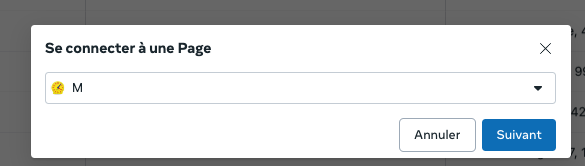
And click on the page to integrate → Next
- A form appears containing all the page information, and you can add more information (phone number is required), and click the “Save” button.
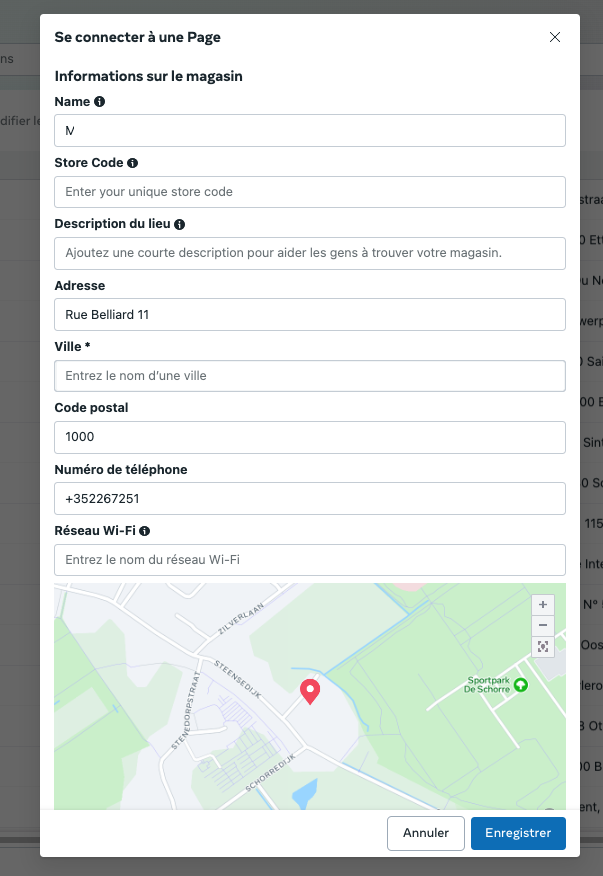
There you go, the store pages are now linked to your national main page! If you encounter any difficulties during any of these steps, we invite you to get in touch with Meta Business Manager support.
Easily manage the online visibility of your points of sale with my.mobilosoft, drive-to-store solutions
Save time and gain visibility from today
Schedule a personalized demo and see how the platform optimizes every local action in your network.


Latest articles
Discover other selected articles to further explore the topic. To continue exploring the levers that really make a difference for your points of sale.